PingOne
Steps not yet verified in the identity provider's current admin console.
Recommended protocol: SAML 2.0.
SAML 2.0
Connect PingOne with SAML 2.0
This guide is not available in your language yet; it is shown in en.
-
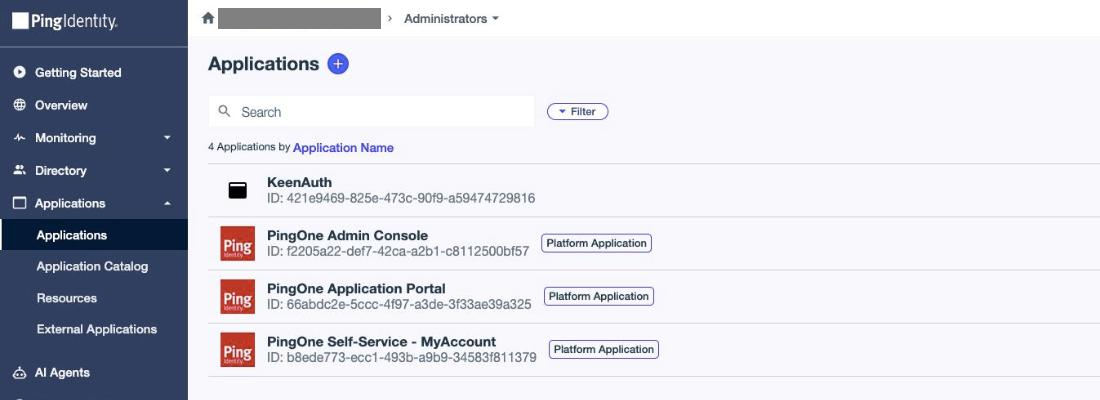
In the PingOne admin console go to Applications > Applications and click the plus icon next to the Applications heading.
-
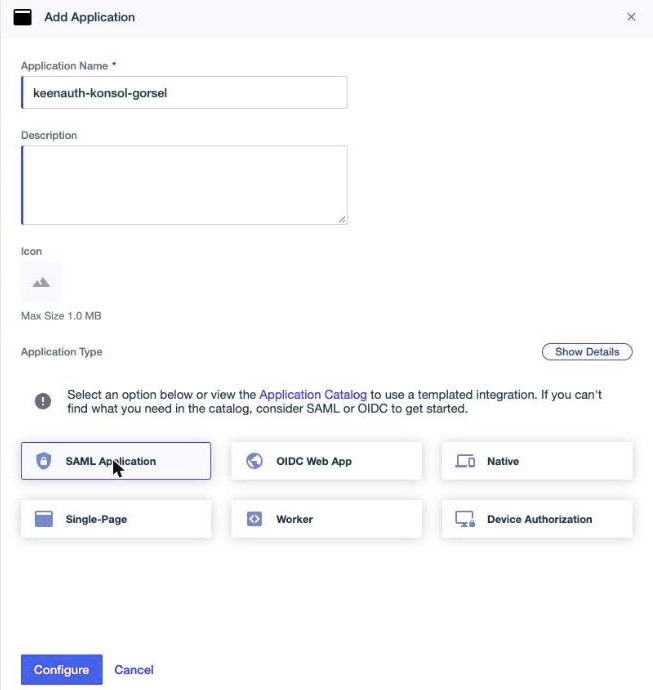
In Add Application enter an Application Name, select the SAML Application tile under Application Type and click Configure.
-
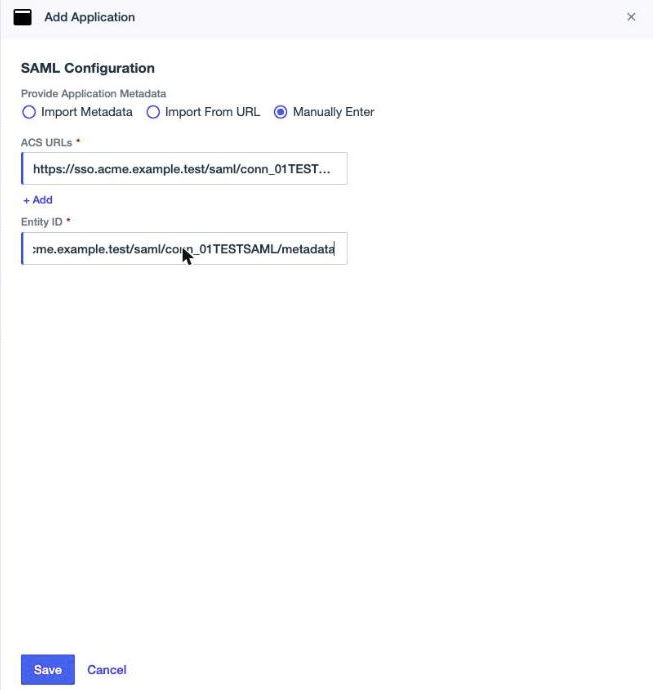
Under Provide Application Metadata select Manually Enter (or Import From URL with the KeenAuth metadata SP metadata URL). In ACS URLs enter ACS URL and in Entity ID enter SP entity ID, then click Save.
-
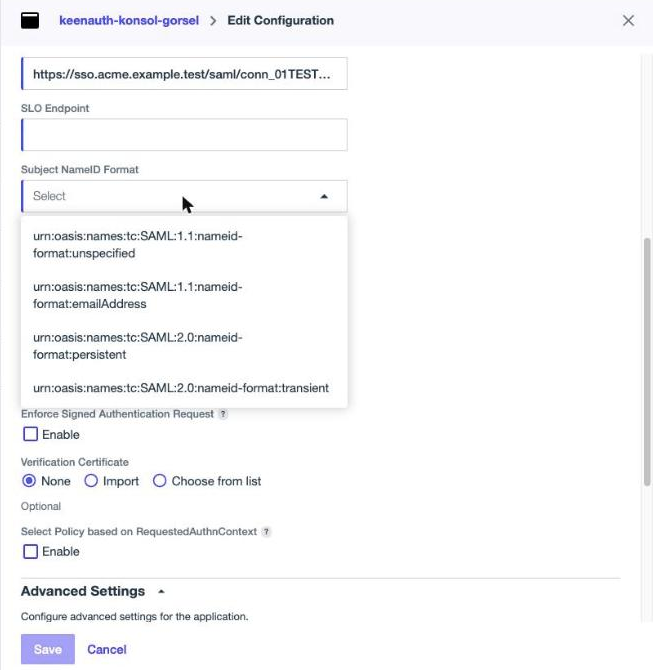
On the Configuration tab (pencil icon) set Subject NameId Format to persistent (the default is Not Specified) and keep Signing on Assertion with Signing Algorithm RSA_SHA256.
-
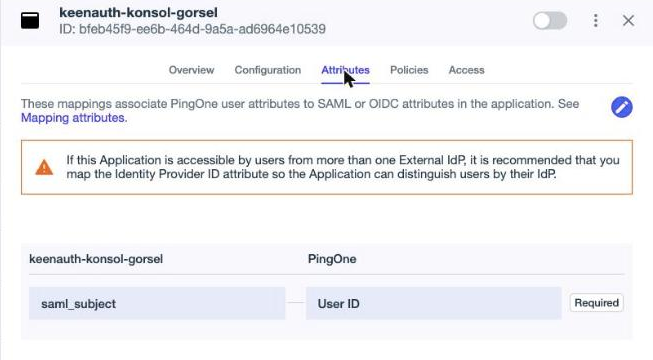
On the Attributes tab add the SAML attributes email, firstName and lastName mapped to the PingOne user attributes Email Address, Given Name and Family Name (these exact names match the KeenAuth Ping profile), then Save.
-
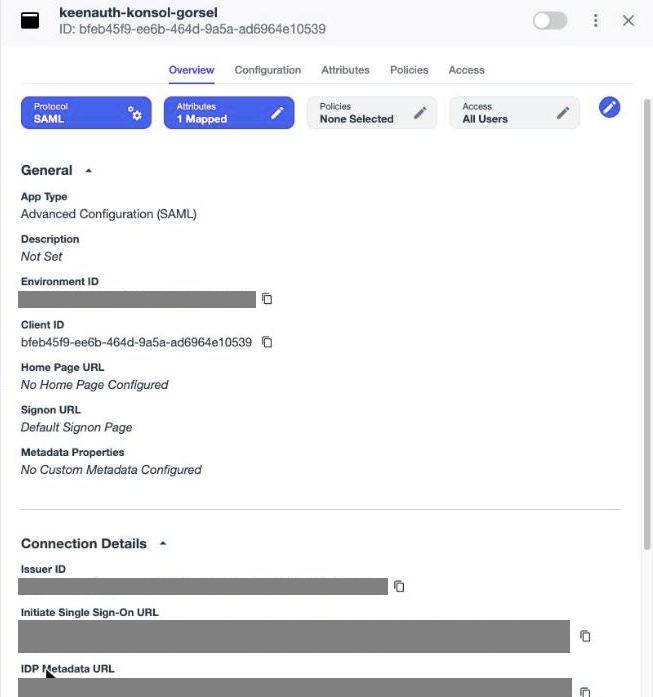
Turn on the application with the toggle at the top right of the details panel and assign access to your users.
-
Download the PingOne signing certificate or metadata and give it to KeenAuth, then run the connection test.
Values in bold are shown on the connection's page in the Admin Portal, where this guide has them filled in.