SAP Cloud Identity Services (Identity Authentication)
Steps not yet verified in the identity provider's current admin console.
Recommended protocol: SAML 2.0.
SAML 2.0
Connect SAP Cloud Identity Services with SAML 2.0
-
Sign in to the administration console for SAP Cloud Identity Services (
https://<tenant>.accounts.ondemand.com/admin). Under Applications & Resources choose Applications.
-
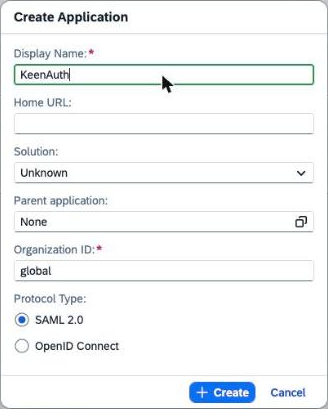
Click Create above the application list. Enter a Display Name, keep Organization ID (prefilled with global, required) and Protocol Type SAML 2.0, then click Create. Home URL, Solution and Parent application are optional.
-
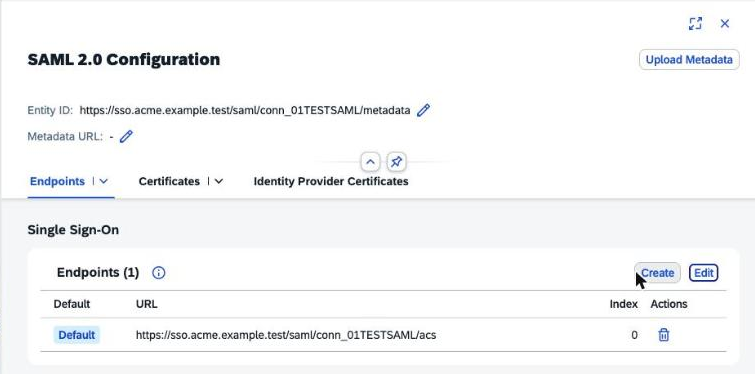
On the new application's Trust tab open SAML 2.0 Configuration and choose Load from URL with SP metadata URL, Load from File, or Configure Manually. For manual setup enter SP entity ID as Entity ID and click Add, then under Endpoints > Single Sign-On click Create, enter ACS URL and click Save.
-
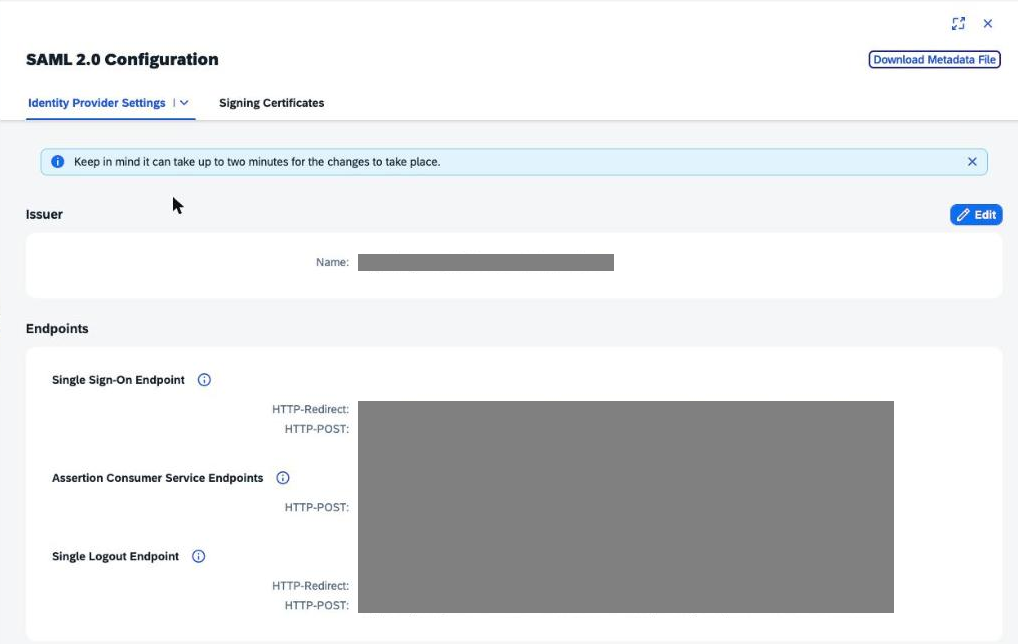
Under Applications & Resources choose Tenant Settings, open the Single Sign-On tab and choose SAML 2.0 Configuration. Identity Provider Settings shows the issuer name and the Single Sign-On, Assertion Consumer Service and Single Logout endpoints; the Signing Certificates tab lists the certificate.
-
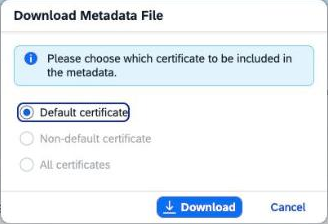
Click Download Metadata File, keep Default certificate (Non-default certificate and All certificates may be disabled when the tenant has a single certificate) and click Download. If you later change the issuer name or the default certificate, update the trust in KeenAuth too (changes take up to 2 minutes).
-
In KeenAuth, upload the SAP metadata file (or enter the issuer and signing certificate), then run the connection test.
Values in bold are shown on the connection's page in the Admin Portal, where this guide has them filled in.