LastPass SSO
Steps not yet verified in the identity provider's current admin console.
Recommended protocol: SAML 2.0.
SAML 2.0
Connect LastPass SSO with SAML 2.0
This guide is not available in your language yet; it is shown in en.
-
Log in to the LastPass Admin Console at
https://admin.lastpass.comwith your email address and master password (complete multifactor authentication if it is enabled). SSO apps are available for LastPass Business (up to 3 SSO app integrations) and Business Max; LastPass acts as the identity provider. -
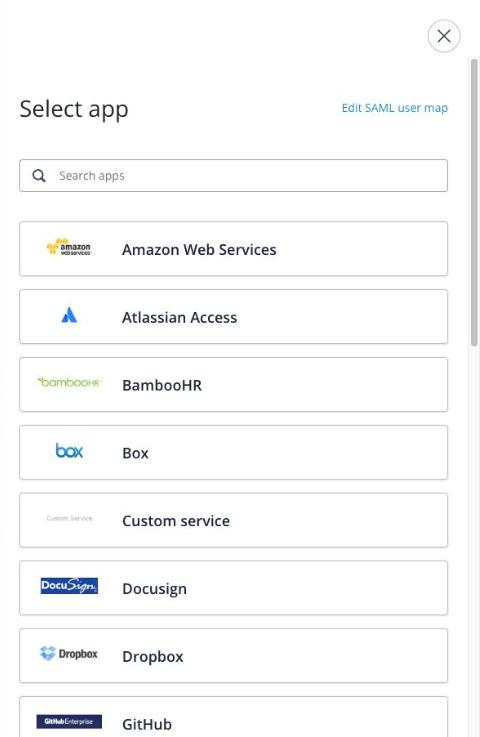
Go to Applications > SSO apps. The first time, LastPass asks you to initialize the SAML keys (follow the link and wait up to 15 minutes). If you have not added SSO apps before select Search the catalog, otherwise select Add app. If KeenAuth is not listed, select Custom service, then select Add new domain.
-
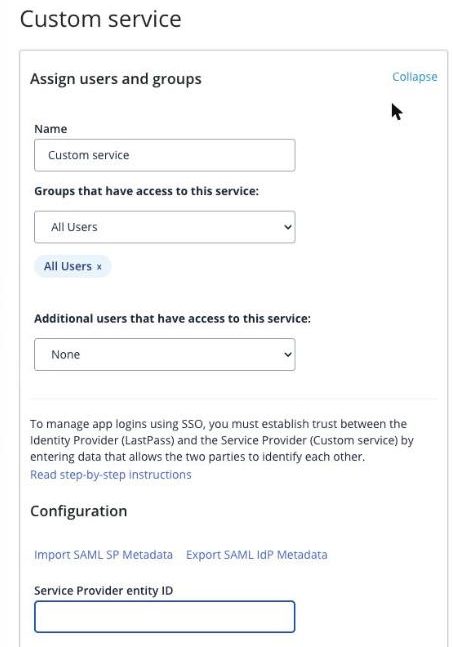
Assign users: in Groups that have access to this service select each group, and in Additional users that have access to this service select individual users.
-
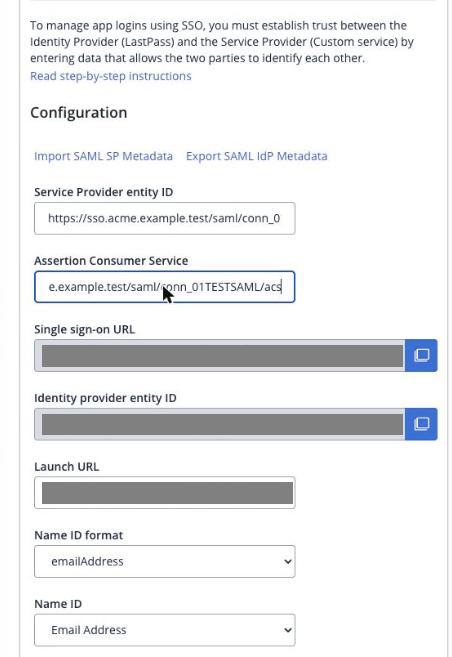
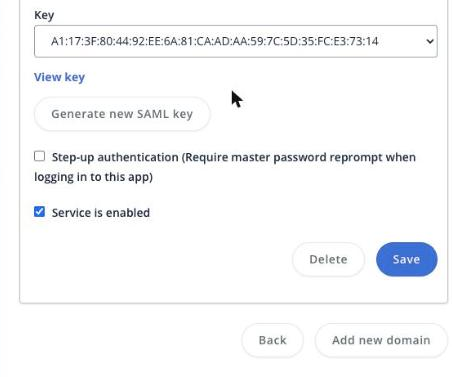
Under Configuration copy the LastPass values for KeenAuth: Single sign-on URL, Identity provider entity ID and, under Key, the SAML key (View key); Export SAML IdP Metadata downloads them as an XML file you can upload. The Name of the app is the first field under Assign users and groups.
-
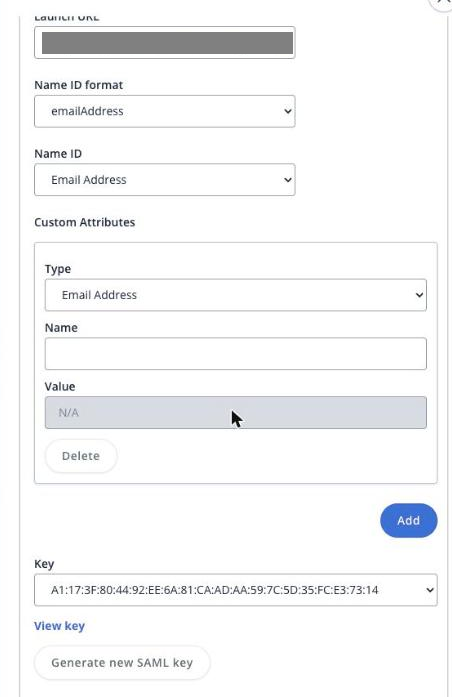
Enter the KeenAuth Service Provider entity ID SP entity ID and the Assertion Consumer Service URL ACS URL (or use Import SAML SP Metadata). Keep or change Name ID format (default emailAddress) and Name ID (default Email Address), and add Custom Attributes if needed; the Launch URL is prefilled.
-
At the bottom keep Service is enabled selected (it is selected by default) and select Save. Then enter the LastPass identity provider values in KeenAuth and run the connection test.
Values in bold are shown on the connection's page in the Admin Portal, where this guide has them filled in.